
How to Connect Siri to ChatGPT
3 min read
Apple's latest updates have taken Siri to new heights by integrating it with OpenAI’s ChatGPT. This feature allows Siri to provide detailed answers to complex questions, moving beyond basic web searches. Here’s a comprehensive guide to setting up Siri with ChatGPT and making the most of this advanced functionality.
The Evolution of Siri
Siri has undergone significant upgrades in recent updates. In iOS 18.1, it received a visual makeover with glowing purple lights surrounding the screen when activated and improved voice command recognition. For the first time, users could also interact with Siri using typed commands via the Type-to-Siri feature.
With iOS 18.2, Siri has taken another leap forward by integrating with ChatGPT. This addition allows Siri to process and respond to complex queries using OpenAI’s powerful language model. For example, Siri can now handle questions like “Can you help me plan a trip to Australia?” and provide detailed, well-structured responses.
Compatibility Requirements
Not all Apple devices support Siri’s ChatGPT integration. To use this feature, your device must meet these specifications:
- iPhone: iPhone 15 Pro, 15 Pro Max, or any iPhone 16.
- iPad: Any M-series iPad or iPad mini 7 with A17 Pro.
- Mac: Any M-series MacBook.
Additionally, ChatGPT integration requires Apple Intelligence, which is available only on these supported devices.
Steps to Set Up Siri with ChatGPT
1. Upgrade to iOS 18.2
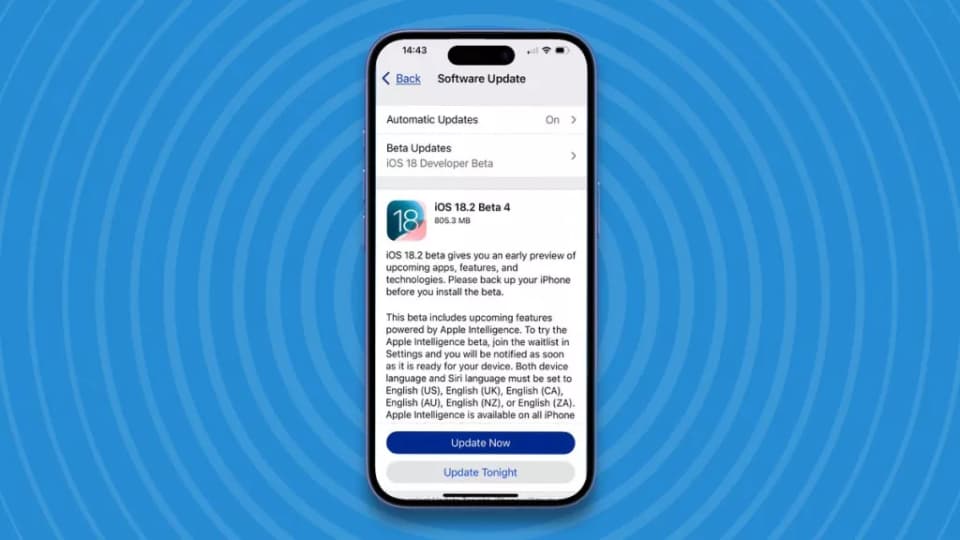
Ensure your device is running the latest operating system. To check for updates, go to Settings > General > Software Update. If iOS 18.2 (or later) is available, tap Update Now. It’s recommended to keep your device connected to power during the update.
2. Change Language (for Non-US Users)
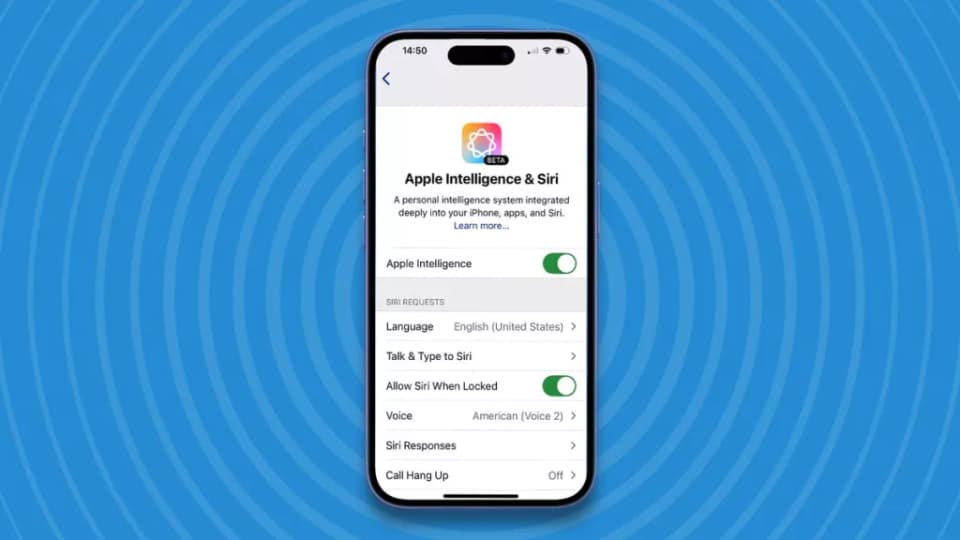
ChatGPT integration is currently limited to the US. If you are outside the US, you can enable this feature by changing Siri’s language to English (United States). Navigate to Settings > Apple Intelligence & Siri and select the language option.
3. Enable ChatGPT in Settings
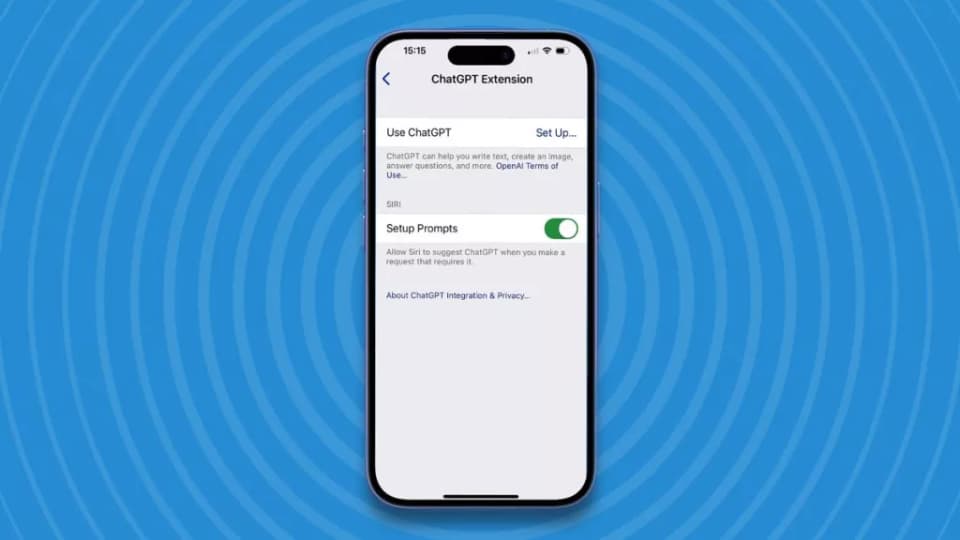
- Open Settings > Apple Intelligence & Siri.
- Scroll to the Extensions section and locate ChatGPT.
- Tap on Set Up and follow the instructions.
4. Review Privacy Information

When enabling ChatGPT, you’ll see privacy details about how your data is used. If you agree, tap Enable ChatGPT. Alternatively, you can sign in with an existing ChatGPT account to sync your preferences and maintain a history of your queries.
5. Monitor Daily Usage Limits
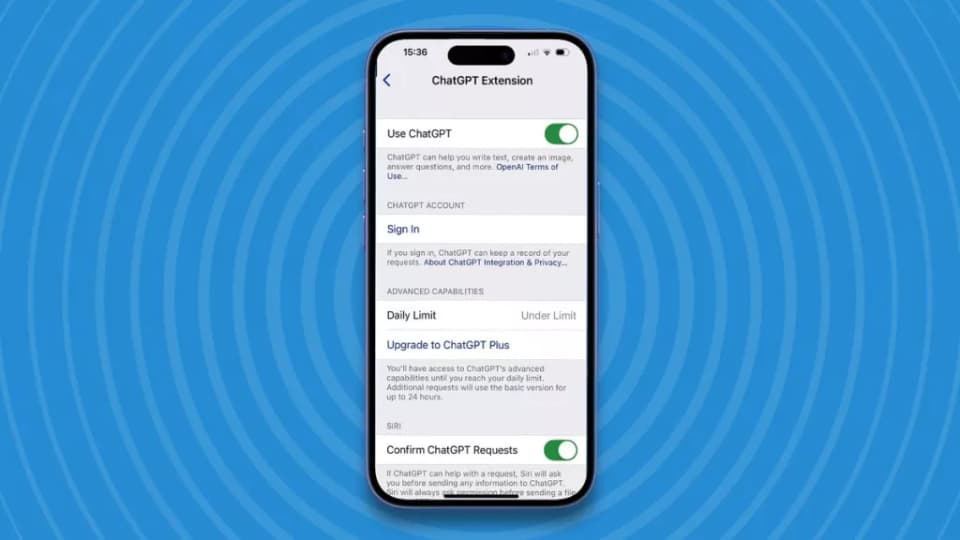
ChatGPT has a daily usage limit based on server availability. To check your usage, go to Settings > Apple Intelligence & Siri > ChatGPT. If you frequently hit the limit, consider upgrading to ChatGPT Plus for $20/month to access advanced features and remove restrictions.

6. Manage ChatGPT Requests
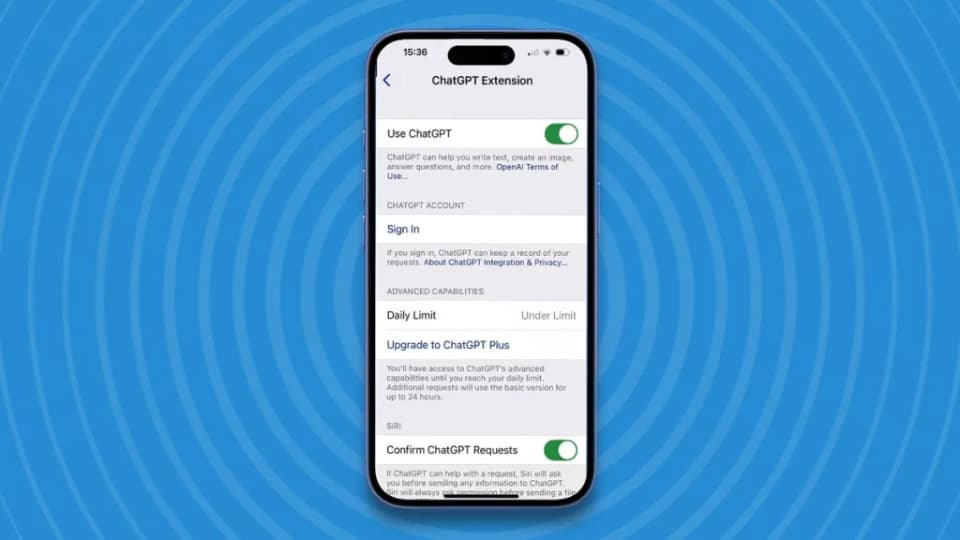
You can enable or disable Confirm ChatGPT Requests in the settings. If enabled, Siri will ask for your permission before sending your query to ChatGPT servers. Disabling this option speeds up interactions but reduces control over data sharing.
Using Siri with ChatGPT
Once set up, using Siri with ChatGPT is seamless. Activate Siri with “Hey Siri” or by holding the sleep/wake button. Ask a complex question, such as:
- “What are the best places to visit in Japan?”
- “Help me plan a healthy weekly meal prep.”
If Confirm ChatGPT Requests is enabled, Siri will ask for approval to use ChatGPT. After processing the query, Siri will display a detailed response on the screen. You can copy the response for future reference, but note that ChatGPT does not currently vocalize answers.
Setting Up Siri with ChatGPT on macOS
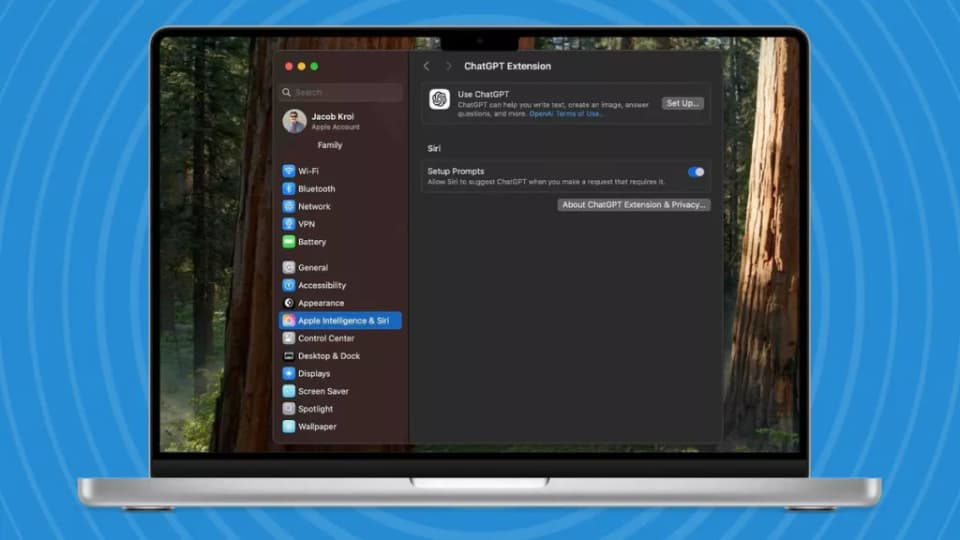
The process on macOS Sequoia 15.2 is nearly identical:
- Open System Settings > Apple Intelligence & Siri.
- Locate and activate the ChatGPT extension.
- Adjust options such as daily limits and request confirmations as needed.
Enhancing Siri with ChatGPT Plus
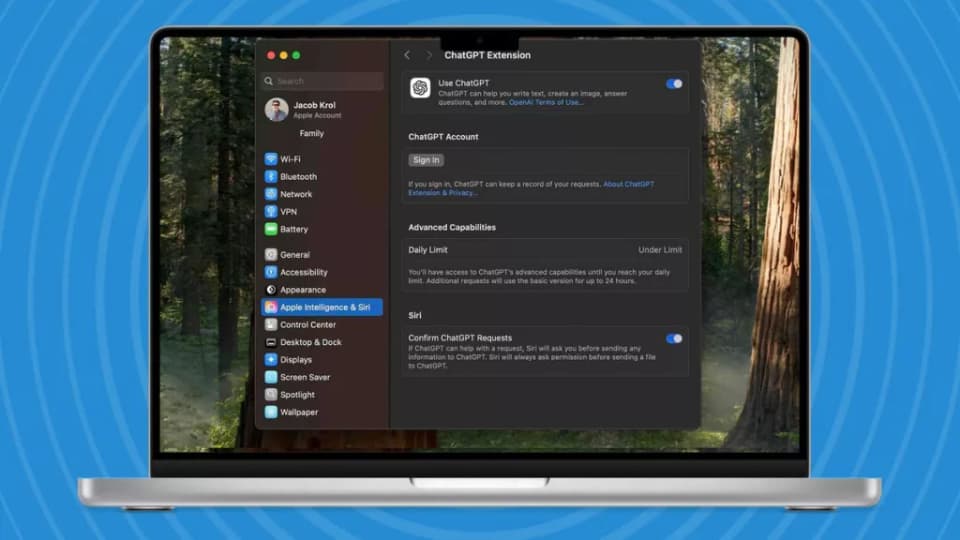
For those seeking uninterrupted access to advanced ChatGPT capabilities, upgrading to ChatGPT Plus is a worthwhile investment. It ensures priority access to servers, removes daily limits, and unlocks additional features for $20/month.
Conclusion
Siri’s integration with ChatGPT in iOS 18.2, iPadOS 18.2, and macOS Sequoia 15.2 marks a significant step forward in Apple’s AI capabilities. With this setup, Siri can handle intricate queries with ease, providing users with a powerful tool for productivity and problem-solving. By following this guide, you’ll unlock the full potential of Siri on your compatible Apple devices.


