
How to Lock Apps on a Google Pixel Phone
2 min read
While some Android devices have built-in app-locking features, Google Pixel phones don’t offer this natively. If you own a Pixel device and want to restrict access to certain apps, there are two effective methods you can use: app pinning and third-party app-locking apps.
Why Lock Apps?
You might want to lock apps to prevent unauthorized access, restrict a child’s use of certain apps, or manage your own screen time. Whatever the reason, these methods will help you achieve app security on your Pixel device.
Requirements
To lock apps on your Pixel, you’ll need:
- A Google Pixel phone.
- The apps you want to lock.
- An internet connection if you plan to use third-party apps.
Method 1: App Pinning (Built-in Feature)
App Pinning is a built-in feature on Pixel phones that allows you to pin one app, which will be accessible without fully unlocking the device. This is useful for letting someone use one app on your phone without allowing access to others.
Step-by-Step Guide to App Pinning
- Open Security Settings
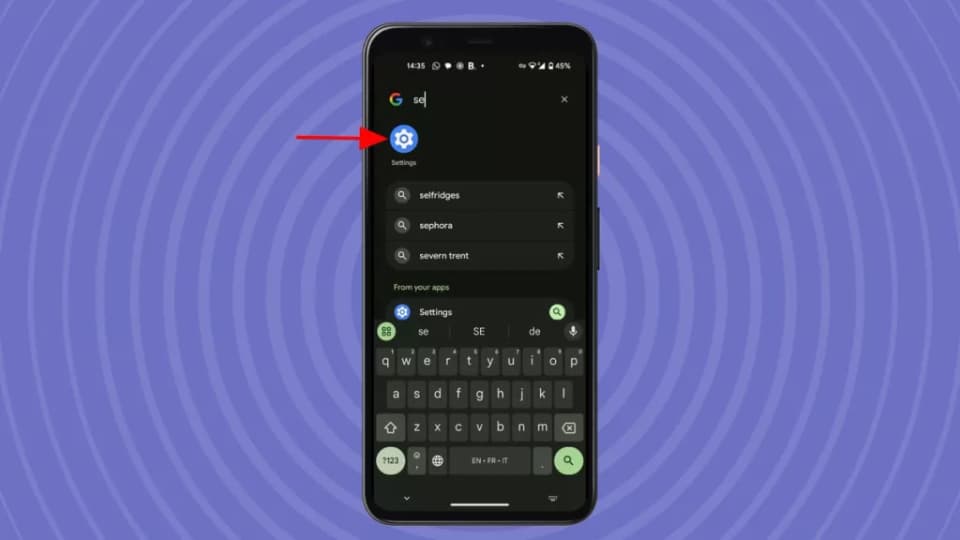
Go to the Settings menu on your Pixel phone, then scroll down to select Security and privacy.
- Find App Pinning Settings
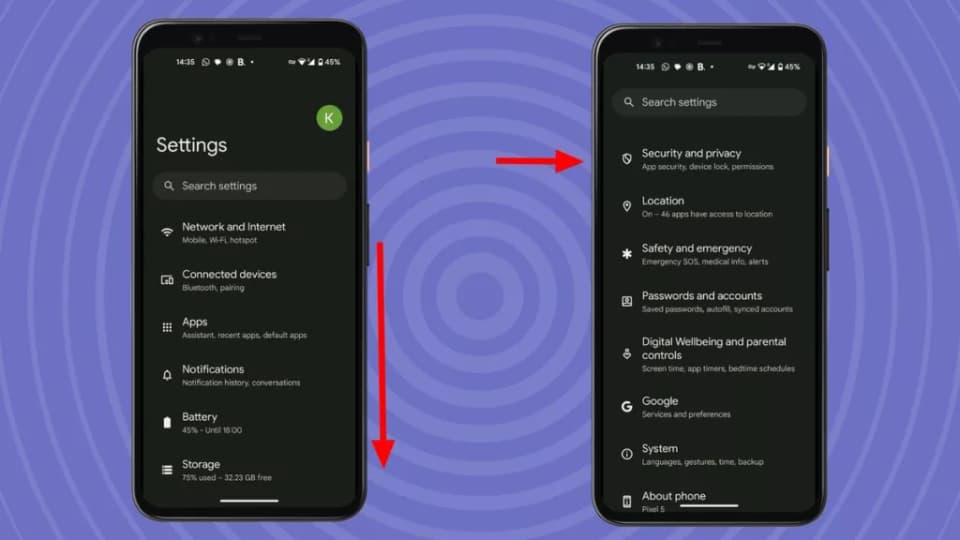
Within Security and privacy, scroll down and select More security and privacy. Here, you’ll find App pinning.
- Enable App Pinning
Toggle on Use app pinning. You may also want to enable the option to lock the phone when an app is unpinned.
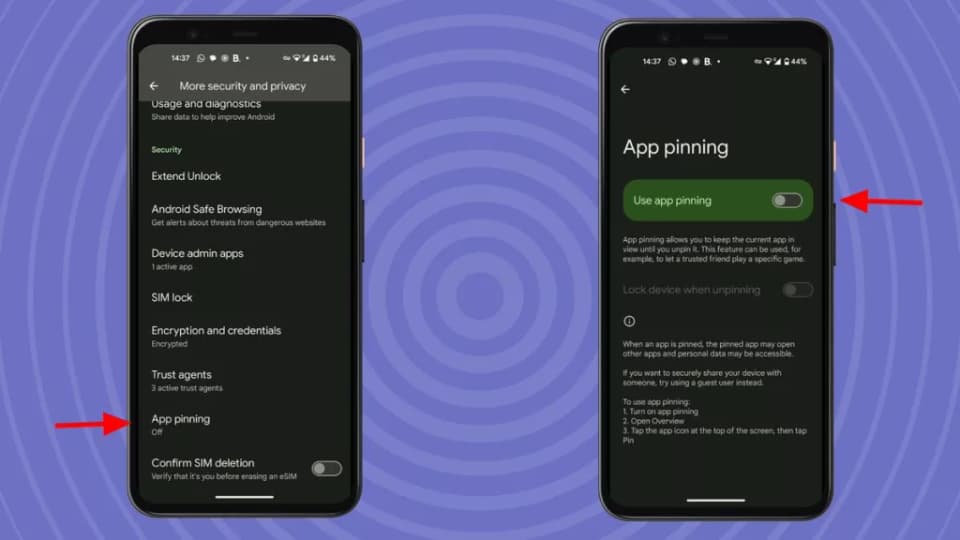
Once enabled, app pinning can be activated by opening the desired app, accessing the Overview screen, and selecting the pin icon.
Method 2: Using Third-Party App Locking Apps
If you need more flexibility and control, third-party app-locking apps provide additional options like PIN, password, or fingerprint authentication for specific apps.
Recommended Third-Party App Locking Apps
- Applock
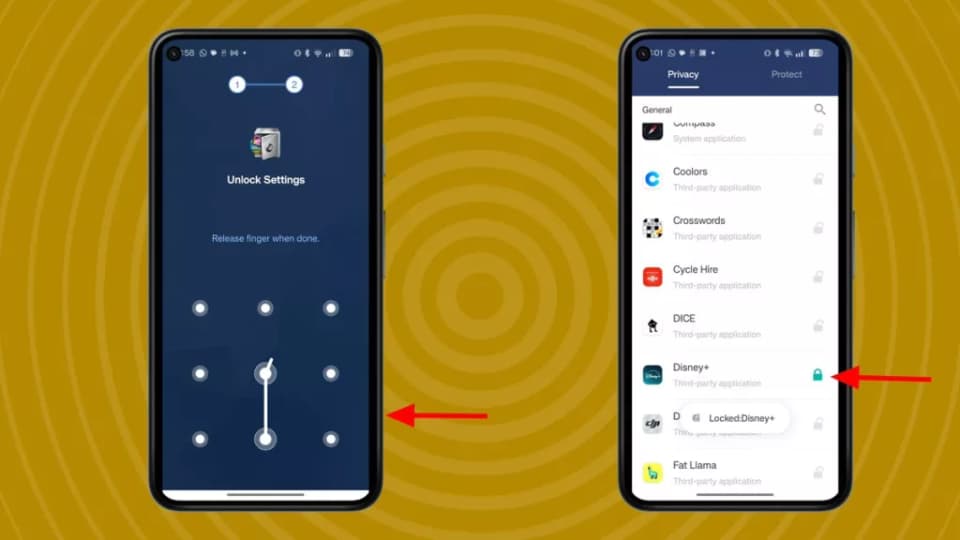
With a 4.2/5 rating and over 100 million downloads, Applock is user-friendly and widely trusted. Download it from the Play Store, set a pattern passcode, and choose the apps to lock by selecting the padlock icon next to each app. Basic features are free, though there is a subscription option to remove ads.
- Applock Pro
Applock Pro offers more features, including various locking methods (pattern, knock code, PIN). With over 100 million downloads and a 4.6/5 rating, it allows customizations like setting lock screens, monitoring phone use, and automatically locking new apps. Some features are ad-supported, but a subscription removes ads and unlocks additional options. - StayFree
StayFree is designed for time management. It automatically locks apps once they pass a set time limit. With a 4.7/5 rating and 10 million downloads, this app is great for restricting excessive usage or managing screen time. StayFree offers options like permanent locks, scheduled locks, and usage-based locking.
Troubleshooting: Locking Apps on Pixel Tablets
The Google Pixel Tablet has the same software, so you can follow the above steps for both app pinning and using third-party app-locking apps.


