
How to Share Your Screen on FaceTime: A Guide
2 min read

Whether you're viewing photos, watching videos together, or giving a presentation, screen sharing on FaceTime can make your video calls more interactive and enjoyable. FaceTime, Apple’s video and audio calling service, integrates effortlessly with Apple devices, providing excellent call quality and a smooth screen-sharing experience. This feature allows you to collaborate more effectively, share media, review documents, or offer guidance to others on the call.
In this guide, we’ll walk you through the steps to share your screen on FaceTime using an iPhone, iPad, or Mac. For those who need advanced video-calling features, we also recommend checking out top video conferencing software options.
Requirements
- An iPhone, iPad, or Mac
- The FaceTime app
- A stable internet connection
How to Share Your Screen on FaceTime (iPhone and iPad)
- Start a FaceTime Call
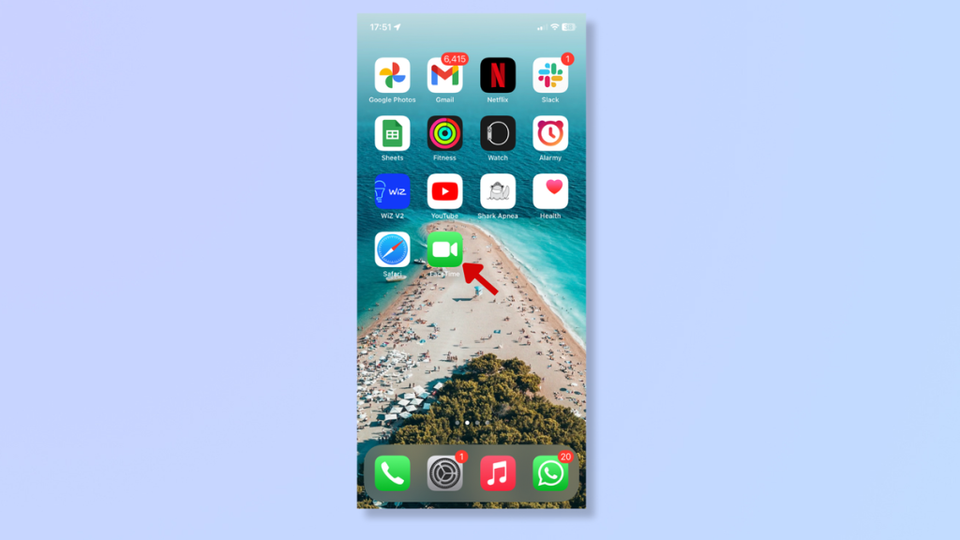
Begin by launching FaceTime and initiating a call with the desired contact(s).
- Tap the Share Icon
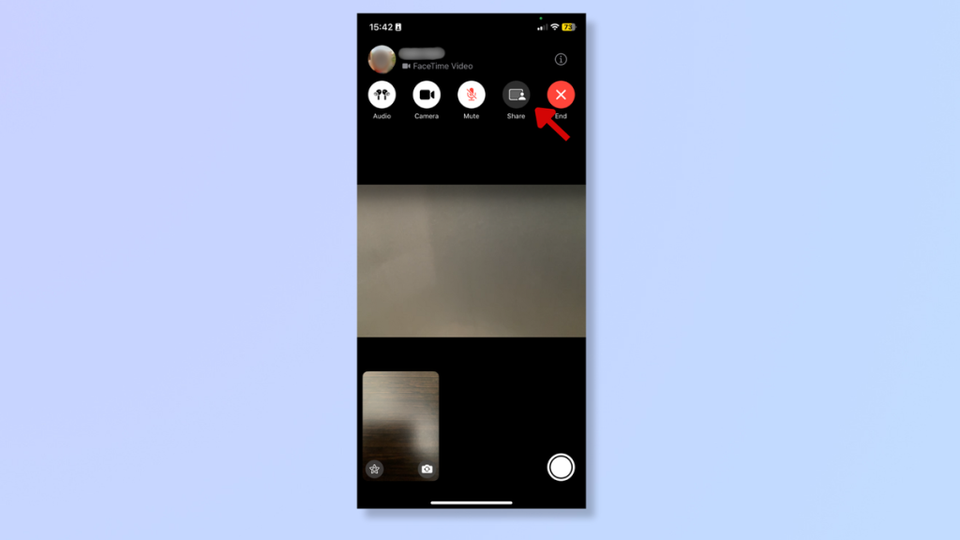
Once the call is active, tap anywhere on the screen to access additional options. Tap the Share icon located next to the red End button (top-right on iPhones, bottom-left on iPads).
- Select "Share My Screen"
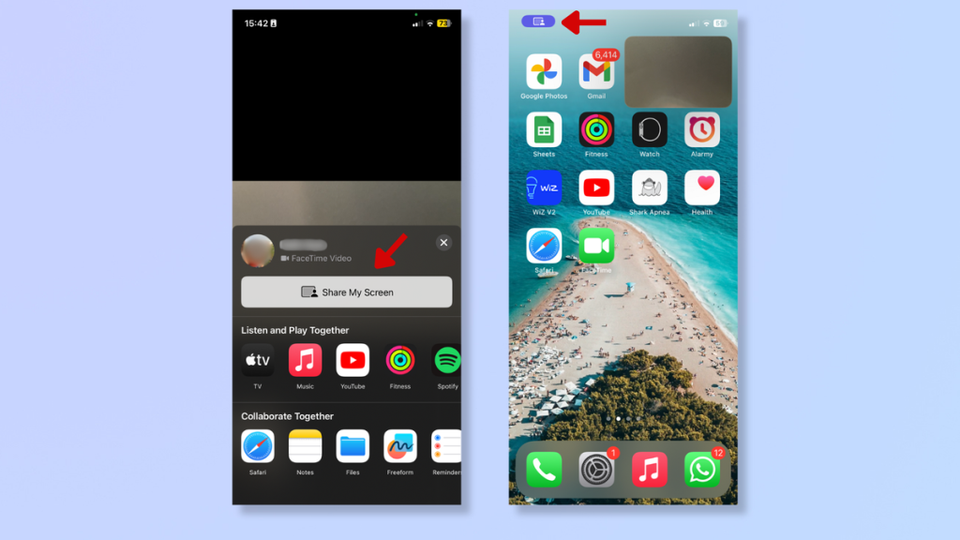
In the menu that appears, select "Share My Screen." A 3-second countdown will start, after which the screen-sharing session begins. The camera will turn off during this time. As you leave the FaceTime app, a purple share icon will appear (top-left on iPhone, top-right on iPad) to indicate active screen sharing.
- End Screen Sharing
To stop sharing, return to the FaceTime app and tap the Share icon again.
How to Share Your Screen on FaceTime (Mac)
- Start a FaceTime Call
Launch FaceTime on your Mac and begin a call.
- Click the Share Icon
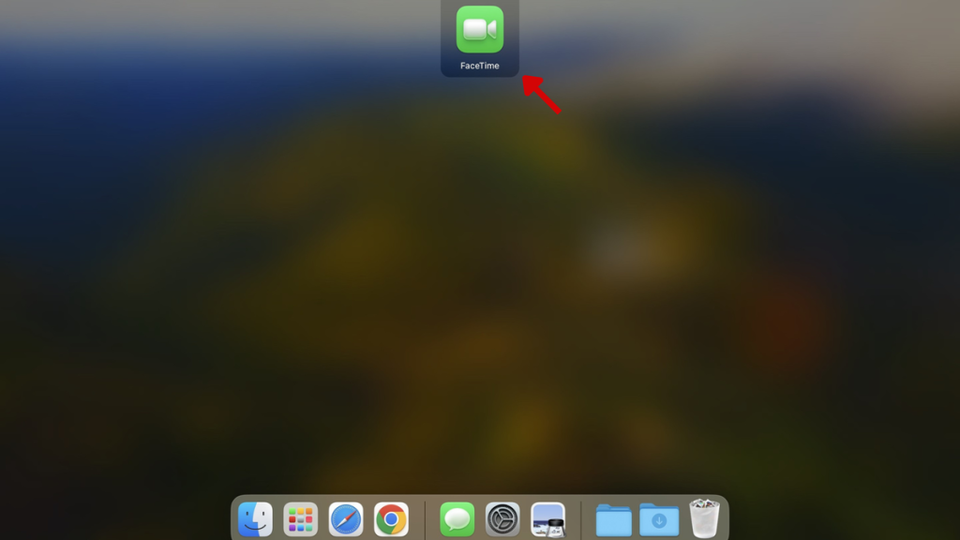
Click the Share icon next to the red X button at the bottom left of the FaceTime window. A menu will appear from the top of the screen.
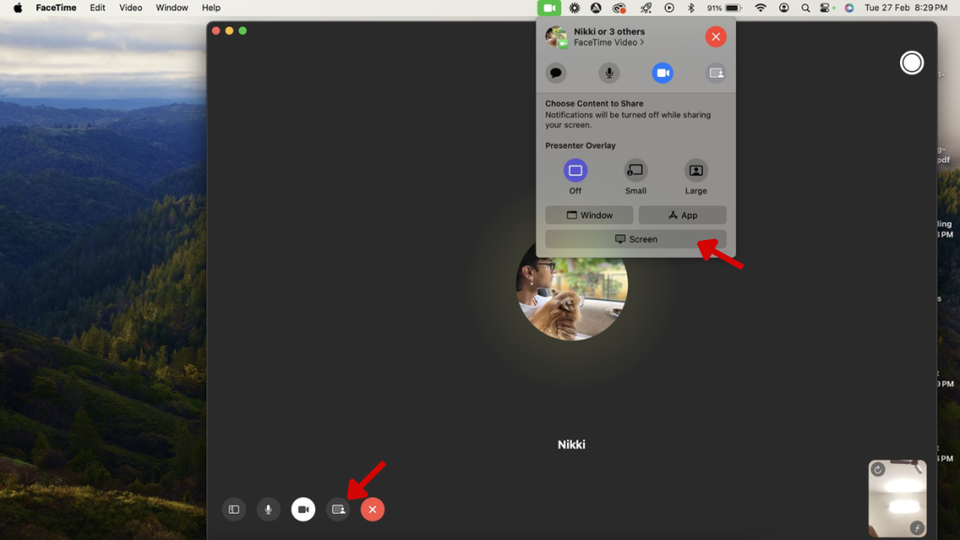
- Share Your Screen
Click "Screen" from the menu and then click anywhere on the screen to start sharing. A purple share icon will appear in the menu bar, indicating that screen sharing is active.
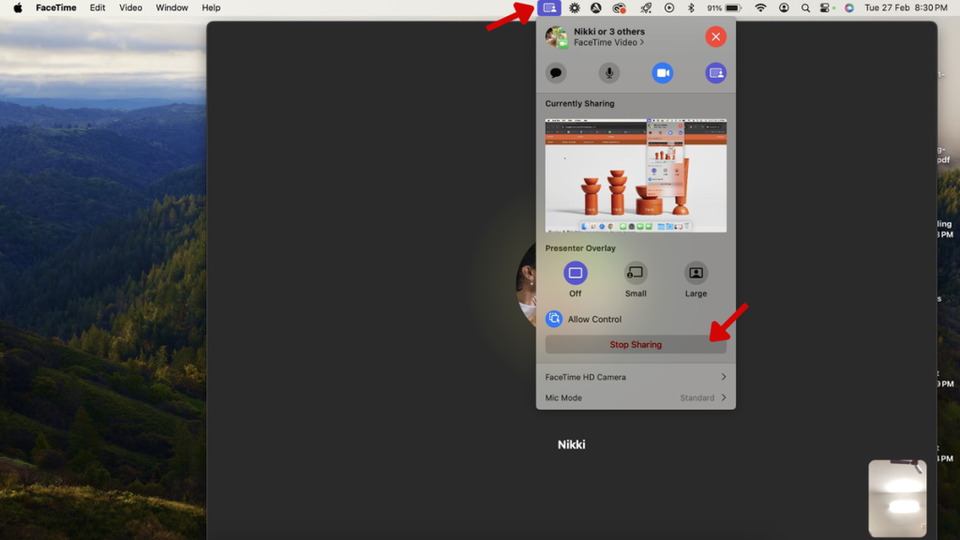
- End Screen Sharing
To stop sharing, click the purple share icon in the menu bar and select "Stop Sharing." If screen sharing isn't working, ensure it's enabled by going to System Settings > General > Sharing > Screen Sharing, and toggling it on.
Final Thoughts
Screen sharing on FaceTime significantly enhances the already great calling experience, offering new ways to collaborate and share content. It improves clarity in work discussions and adds fun to personal conversations. For a smooth experience, ensure that all participants have compatible devices with the latest OS updates.


