
How to Easily Monitor and Maintain Your SSD's Health
1 min read
A storage drive, whether it's a solid-state drive (SSD) or a hard disk drive (HDD), is a crucial part of your PC, holding your operating system and important data. While SSDs usually require less maintenance than other components, it's still important to monitor their health to prevent data loss and ensure smooth performance. Here are some ways to check your SSD’s health.
Checking SSD Health with Third-Party Tools
SMART Technology: SSDs come with a built-in monitoring system called SMART (Self-Monitoring, Analysis, and Reporting Technology). This system tracks the health of your drive independently from your operating system or other software.
CrystalDiskInfo: This is a reliable tool to check your SSD’s health. Simply download and install CrystalDiskInfo, open it, and it will display important details like your SSD’s health status and temperature. Other tools like HWiNFO and AIDA64 Extreme also use SMART technology to monitor SSD health.
Manufacturer-Specific Tools: Some SSDs come with their own monitoring tools provided by the manufacturer. For example, if you have a Samsung SSD, you can use Samsung Magician; for a Seagate SSD, use SeaTools. These tools will display health information directly after installation.
Checking SSD Health via Command Prompt in Windows 11
If you’re using Windows 11 and prefer not to install extra software, you can use Command Prompt to check your SSD’s health:
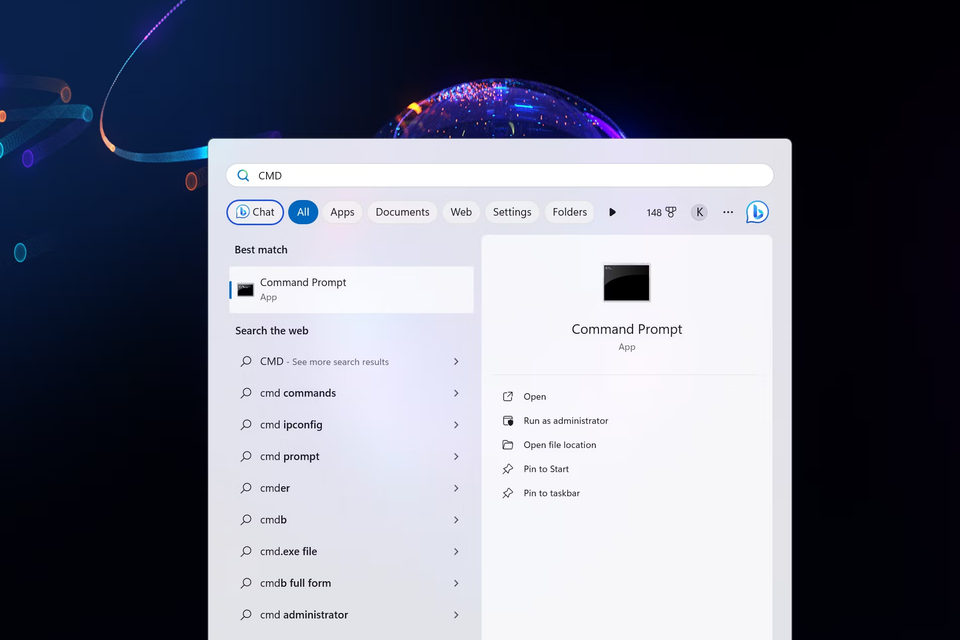
- Open Command Prompt by searching for it in the Start menu.
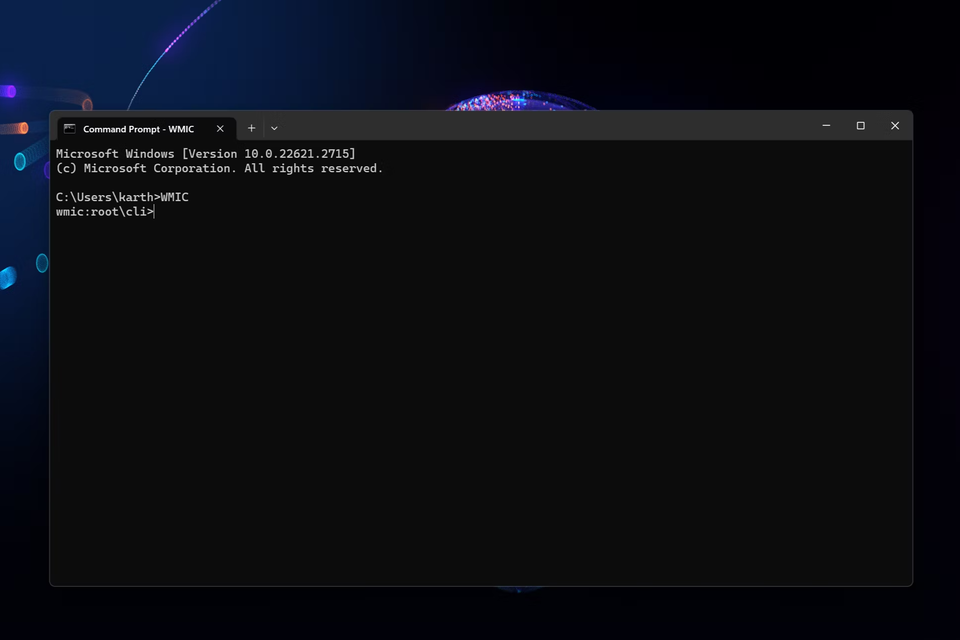
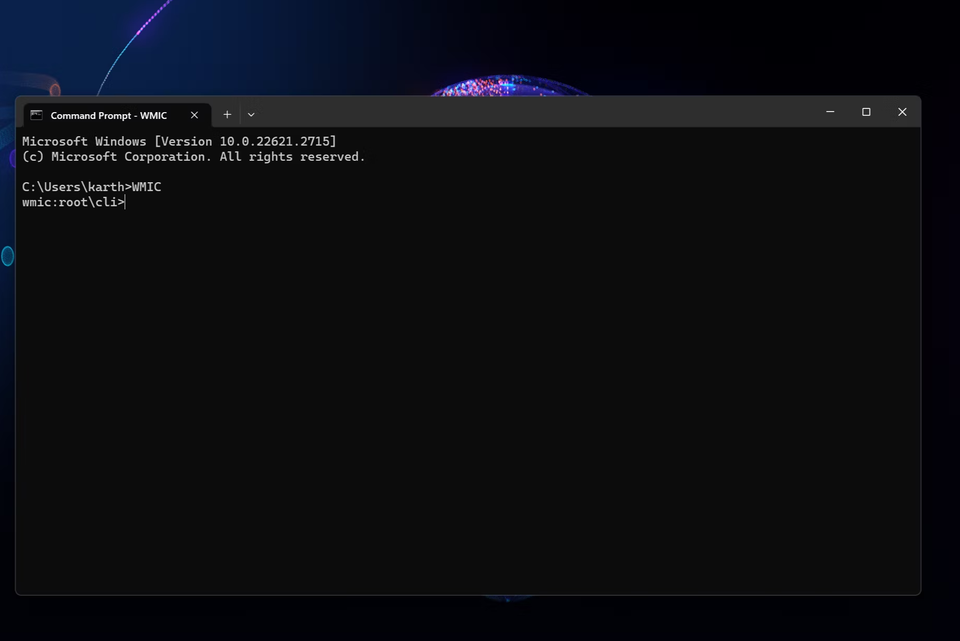
- Type
WMICand press Enter. - Then type
diskdrive get statusand press Enter.
If it says "OK," your SSD is in good shape. If it shows "Pred Fail," your SSD is likely failing, and you should back up your data immediately. However, this method provides only basic information.
Regular Monitoring is Key
Even the best SSDs can develop issues over time, so it’s a good idea to check their health regularly. Not all SSDs support SMART, especially older models, so if you can’t retrieve health information, consider upgrading to a newer SSD for better performance.


